User Guide - Zoho CRM 2 ClickSend
1.1 How to send SMS
The SMS can be sent to the below modules.
LEAD
CONTACT
DEALS
POTENTIAL and
CAMPAIGN
For this user manual we will be using the Lead module as a reference.
1.1.1 Send SMS to individual contact.
Go to a particular lead, contact, Potential or Campaign details can click on the “Send SMS” button.

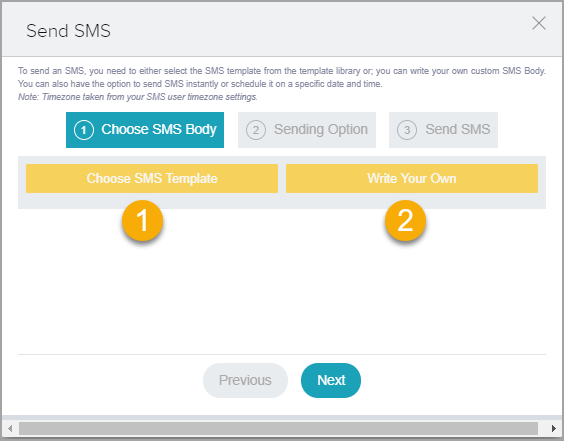
1.1.2 After clicking the “Send SMS” button below widget will pop up. You will get two options to send SMS
Click the “Choose SMS Template” button to send SMS by using a template.
Click the “Write Your Own” button to send manual/customize SMS.
1.1.3 Once you done with writing your SMS body, you will get 2 options to send SMS
Send Later
Send Now

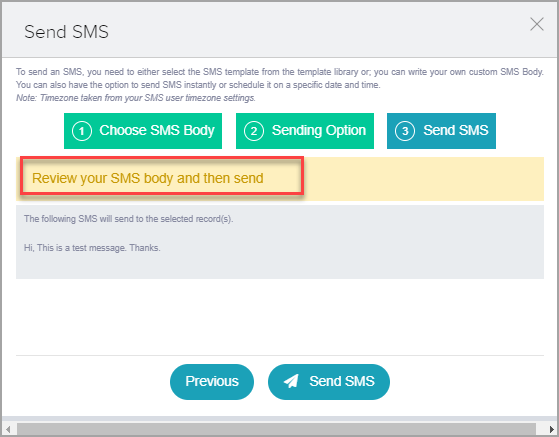
1.1.4 Finally, your whole message will appear for review before sending, once you done the review please click on the “Send SMS” button to send the SMS.
1.2 Send Bulk SMS
The SMS can be sent to the below modules.

LEAD
CONTACT
DEALS
POTENTIAL and
CAMPAIGN
For this user manual we will be using the Lead module as a reference.
1.2.1 Template based Bulk SMS
Go to the module Leads, Contacts, Deals, Potentials or CAMPAIGN Select one or multiple records from the list

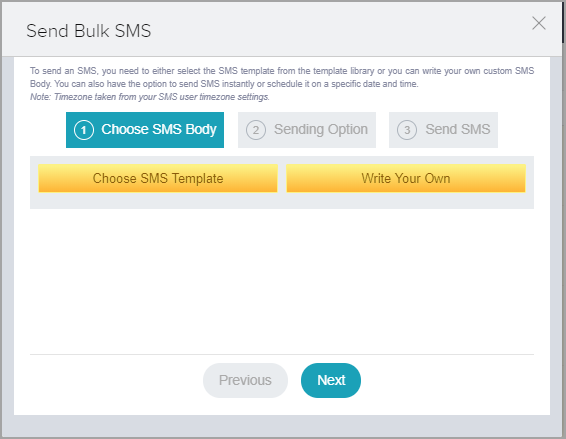
1.2.2 After clicking “Send Bulk SMS” button you will get below widget and you can follow the instruction from 4.1.1
1.3 SMS History
You can find all of your Send and receive SMS, SMS histories, also you can see the related section for leads, contacts, deals, Campaigns.
1.3.1 SMS history Tab, If it is not available in top please go to options (3 dots)

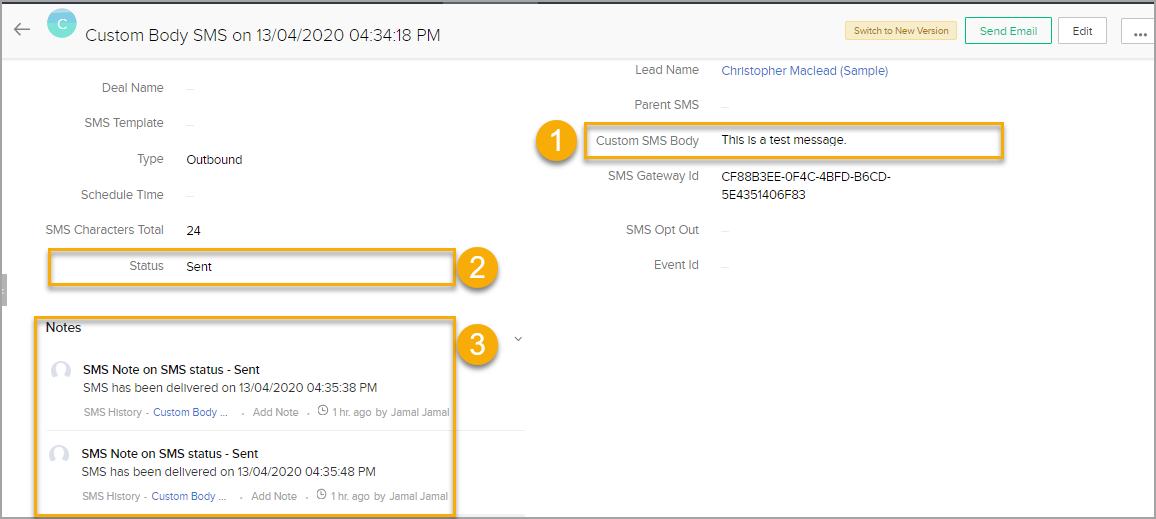
1.3.3 SMS History page details-

Custom SMS body: You can see the message body
Status: You can see SMS status
Notes: You can see sms notes, if any message failed you will get hint messages here.
This plugin allows you to set Event reminders. Follow below instructions to set event reminders.
Go to Activities.
Event
Set your Event name
Set the time duration of your Event.
Set a related Module and assign the recipient as well.
Set reminder time.
Save the configuration.
1.5 How to delete a Event Reminder:
Please follow the instructions below to delete an event reminder.
Go to “Activities”
Select ‘All Activities’
Find your desire event
Click on option (3 dots)
Click on Delete

 If you have any issue please contact extension@oscillosoft.com.au